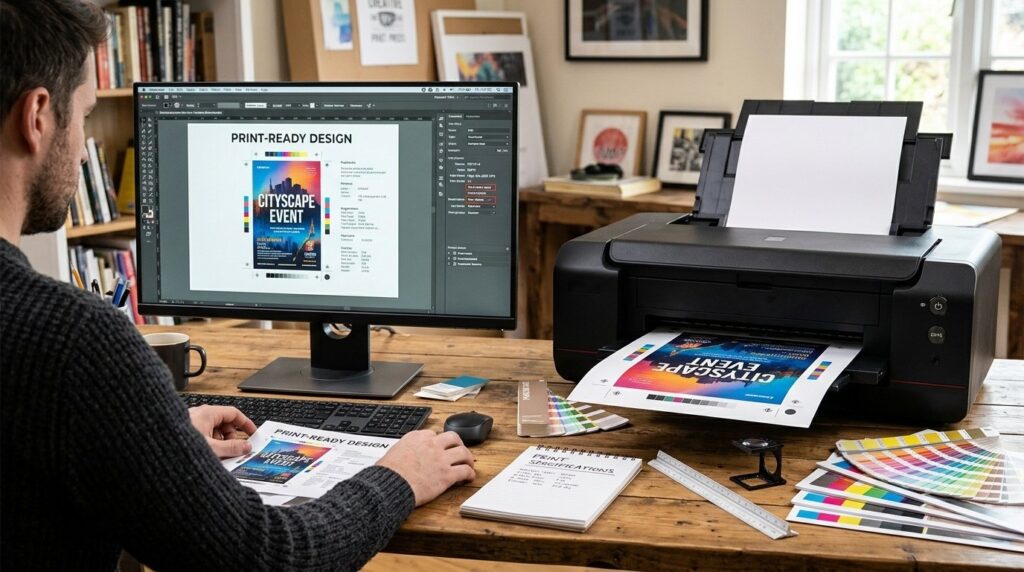
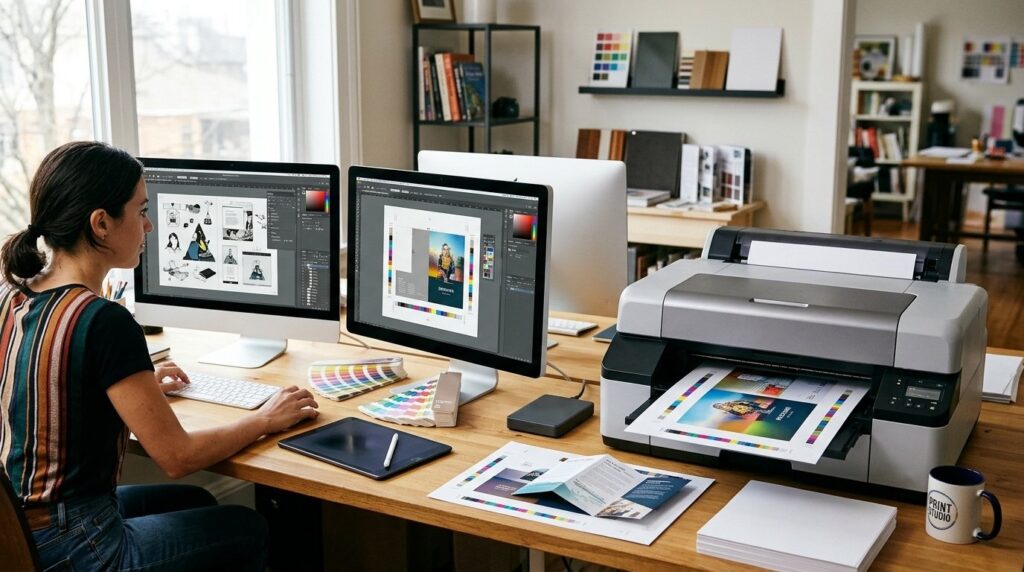
A print-ready file format is a digital document prepared with the exact specifications a printer needs to reproduce artwork accurately without manual corrections. As of 2026, PDF/X is the industry-standard print-ready file format, because it locks in color values, embeds fonts, and preserves bleed and trim marks inside a single, universally compatible file.
Why the Right File Format Matters for Professional Printing
Print shops cannot “fix” a file the way a designer can in Adobe Photoshop or Adobe Illustrator. A mismatched color mode, missing font, or low image resolution causes blurry text, shifted colors, or rejected proofs. Industry groups such as the Ghent Workgroup publish PDF/X-based specifications that standardize color space, resolution, and bleed settings before a file ever reaches a press. Choosing the correct file format for professional printing is the single biggest factor separating a flawless print job from a costly reprint.
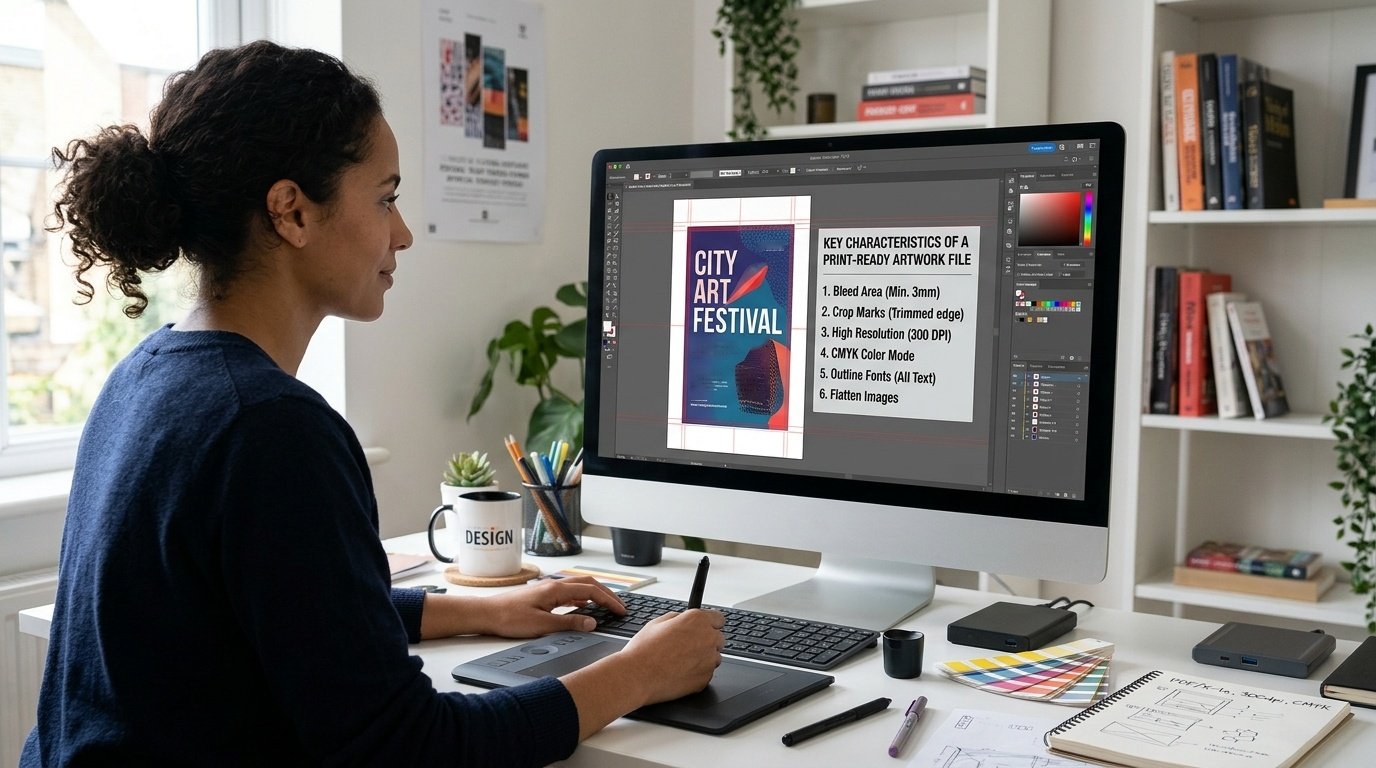
Key Characteristics of a Print-Ready Artwork File
CMYK color mode: Printers use Cyan, Magenta, Yellow, and Black (CMYK) ink, not Red, Green, Blue (RGB) light. A file submitted in RGB must undergo CMYK color conversion before output.
High image resolution: Standard print resolution requirements call for 300 DPI (dots per inch) at final print size; anything lower can produce visible pixelation.
Bleed and margin settings: A 0.125-inch (3 mm) bleed extends background elements past the trim line so no white edges appear after cutting.
Embedded or outlined fonts: Font embedding in PDF prevents missing-font errors; alternatively, text can be converted to outlines in Illustrator.
Correct color profile: An ICC profile (such as GRACoL or SWOP) ensures color accuracy in printing across different presses and paper stocks.
How a Print-Ready File Works: Step-by-Step Workflow
Design in vector or raster software. Use Adobe Illustrator for logos and line art (vector graphics), Adobe Photoshop for photo-based layouts (raster graphics), and Adobe InDesign for multi-page documents.
Convert RGB to CMYK. Switch the document color mode before final export to avoid unexpected color shifts.
Set bleed and add trim marks. Configure bleed and margin settings in the document setup panel, typically 0.125 inch on all sides.
Check image DPI for print. Verify every placed raster image meets 300 DPI resolution at 100% scale.
Embe fonts. Enable font embedding during export, or outline all text layers.
Export as PDF/X. Choose the PDF/X-1a or PDF/X-4 preset in the PDF export dialog.
Apply file compression carefully. Use lossless or minimal image compression to retain detail without inflating file size.
Validate the file. Run a preflight check in Adobe Acrobat Pro to catch missing fonts, low-resolution images, or incorrect color spaces.
For designers unfamiliar with prepress workflows, many commercial shops publish a print-ready file checklist outlining the exact export settings accepted for their presses.
Common Misconceptions About Print-Ready Files
Myth: Any high-resolution image is automatically print-ready.
Reality: A high-resolution image in RGB color mode without bleed or embedded fonts will still fail prepress checks. Resolution is only one of several print file specifications.
Myth: JPEG files are fine for professional printing.
Reality: JPEG uses lossy compression that degrades image quality each time the file is re-saved, and it handles sharp text and line art poorly. TIFF or PDF formats preserve full image quality without compounding artifacts. Some printers accept maximum-quality JPEGs for photo-only jobs, but they are rarely the best choice.
Myth: PDF is always print-ready by default.
Reality: A standard PDF can still contain RGB colors, missing fonts, or no bleed. A properly exported PDF/X file is the most reliable way to guarantee print compatibility.
Myth: Vector files never need resolution checks.
Reality: Pure vector graphics (AI file, EPS, SVG) scale infinitely without quality loss, but any embedded raster images inside them still need 300 DPI resolution.
Vector Graphics vs. Raster Graphics for Print
Attribute
Vector Graphics
Raster Graphics
Best file types
AI file, EPS, scalable vector graphics (SVG), PDF
TIFF, PSD, JPEG, PNG
Scalability
Infinite, no quality loss
Fixed to original image resolution
Ideal use case
Logos, text, line art, large format printing
Photographs, gradients, textures
File size
Typically smaller
Larger, depends on compression
Software
Adobe Illustrator
Adobe Photoshop
Understanding vector vs. raster for print determines which software and export settings a designer should use from the start of a project.
PDF vs. AI, EPS, and TIFF: Choosing the Best File Format for Printing
Format
Type
Common Use
Print Compatibility
PDF/X
Vector + raster container
Universal print submission
Excellent — industry standard
AI file
Vector
Editable source files
Good, but not all shops accept native AI
EPS
Vector
Legacy logo/illustration format
Good, being phased out in favor of PDF
TIFF
Raster
High-resolution photo files
Excellent for raster-only jobs
JPEG
Raster, compressed
Web images
Poor — avoid for final print art
This comparison shows why PDF is the standard file format for printing: it combines vector precision, embedded raster images, font embedding, and color profile data in one portable file.
Practical Applications: File Format by Print Product
Print Product
Recommended File Format
Key Setting
Business cards
Print-ready PDF (PDF/X-1a)
0.125″ bleed, 300 DPI
Brochures
PDF from Adobe InDesign
CMYK, embedded fonts
Banners (large format)
TIFF or PDF
Lower DPI acceptable at viewing distance
Packaging design
PDF/X-4 with spot color
Pantone matching, die-line layers
Offset printing jobs
PDF/X with ICC profile
Pantone or CMYK spot color accuracy
Digital printing jobs
High-resolution PDF
sRGB or CMYK depending on press
For large format printing, DPI requirements drop because viewers stand farther away. A trade show banner may only need 100–150 DPI at full size, and a highway billboard far less, while a brochure demands the full 300 DPI standard.
Spot Color, Pantone, and Color Profile Considerations
Brand-critical designs often specify a Pantone spot color rather than relying on CMYK conversion, which ensures consistent color accuracy across multiple print runs. Every print-ready file should also carry the correct ICC profile, so the print shop’s RIP (Raster Image Processor) software interprets the color space exactly as intended.
Frequently Asked Questions
What is the ideal DPI for print-ready files?
Standard commercial printing requires 300 DPI at final output size; large format printing such as banners can use 100–150 DPI, and billboards even less.
How do I convert RGB to CMYK for printing?
In Adobe Photoshop, go to Edit > Convert to Profile and select a CMYK profile such as U.S. Web Coated (SWOP) v2 or GRACoL. In Adobe Illustrator, go to File > Document Color Mode > CMYK Color. Always ask your printer which profile they prefer.
What is PDF/X and why does it matter for printing?
PDF/X is an ISO standard (ISO 15930) subset of PDF built for reliable print exchange. It requires embedded fonts and defined output conditions. PDF/X-1a limits files to CMYK and spot colors with flattened transparency, while PDF/X-4 supports live transparency and ICC-based color, making PDF/X one of the safest print-ready file formats for commercial print shops.
How do I add bleed to a print-ready PDF?
Set bleed values in the document setup panel (typically 0.125 inch) before designing, then confirm bleed and crop marks are enabled during PDF export.
Key Takeaways
PDF/X is the most widely accepted print-ready file format for commercial and offset printing in 2026.
CMYK color mode, 300 DPI resolution, and a 0.125-inch bleed are the standard print file specifications for most commercial print jobs.
Choosing a color scheme for any logo, flyer, poster, pamphlet or brochure can be difficult, especially if you have no experience in graphic design. However, if you have the right knowledge and know how to use the tools available to you, finding the perfect eye-catching color palette will become much easier. In this post, we…
Embracing the Charm of Local Printing in San Diego at Replica Printing Services Hey there, fellow San Diegans and print enthusiasts! Let’s talk about something that’s close to our hearts and right around the corner: printing locally in our beloved San Diego. You might think of printing as just ink on paper, but it’s so…
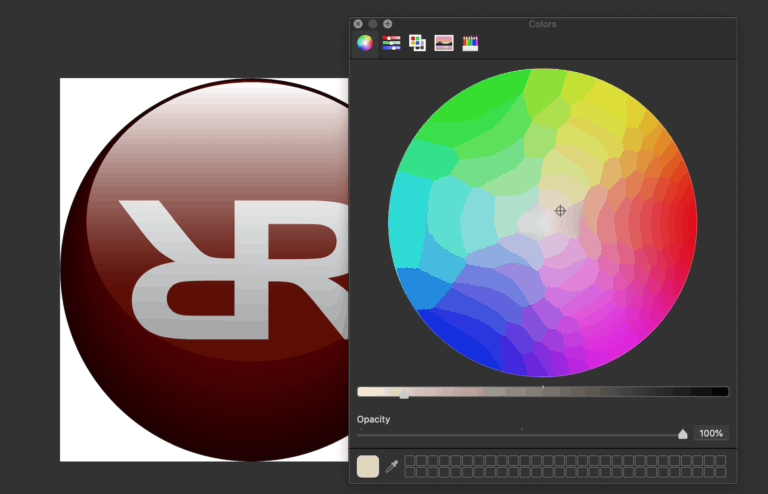
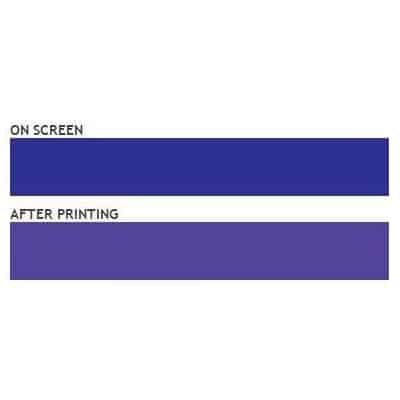
So your company identity is branded using the color blue. Blue is very important to you, as it should be. So imagine the frustration when you have your marketing materials delivered, only to find out that your blues are now purple! You may be seeing something like this, for example: This is what we like…
In elementary school we are taught that Red, Yellow, and Blue are the primary colors, so then why do printers use CMYK (Cyan, Magenta, Yellow, and Black)? And why do TV’s and monitors use Red, Green, and Blue? The answer is actually pretty straight forward and easily explained with a few pictures. Additive vs. Subractive…
Augmented reality is a developing new technology, and with a wide range of uses, AR is looking to become the next biggest thing. Already, AR is in the hands of consumers. Games like PokemonGo and AR Stack have brought augmented reality into the mainstream, and companies like IKEA have taken advantage of the technology to allow…