
How to Set Up a Pantone Spot Color for Brand-Accurate Printing: 6-Step Guide
Setting up a Pantone spot color ensures exact color reproduction for brand identity colors across all printed materials. This standardized color system provides a universal color language between graphic designers and commercial printers. According to the Pantone Matching System (PMS), properly specified spot colors achieve 95-98% color accuracy compared to 70-85% accuracy with CMYK process colors alone. This step-by-step guide to spot color setup takes 30-60 minutes and requires beginner-to-intermediate design software skills.
Before You Begin: Prerequisites

- Adobe Illustrator, Adobe InDesign, or Adobe Photoshop (2020 or later)
- Pantone Formula Guide or Pantone Color Bridge (physical or digital reference)
- Brand guidelines with specified PMS color codes
- Contact information for your print shop or commercial printer
- ICC profile for target substrate (coated paper or uncoated paper)
- Basic understanding of vector graphics and color management
Step 1: Determine When to Use Spot Colors vs Process Colors

Before setting up Pantone colors, evaluate whether spot color printing is appropriate for your project. Use spot colors when brand color matching requires exact color match printing that CMYK cannot reproduce accurately. Non-process colors include metallic, fluorescent, or specific corporate color standards critical to brand identity. According to print production standards (American Printing Association, 2024), projects requiring dedicated ink justify the additional printing plate cost when color consistency checking across materials is mandatory.
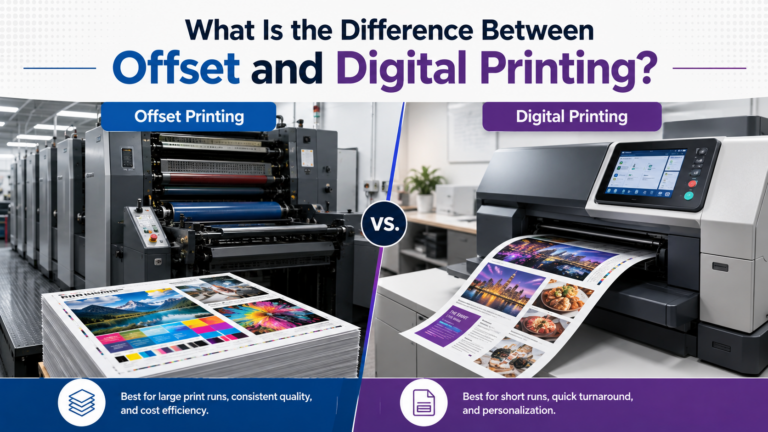
Choose process colors when printing full-color images requiring CMYK to Pantone conversion. Most offset printing and digital printing workflows accommodate up to two spot colors economically. Screen printing and flexographic printing frequently use spot colors as dedicated printing units. Consult your Pantone certified printer early to discuss custom ink mixing capabilities and ink color specification requirements.
Step 2: Find the Correct Pantone Color Code
Locate your brand’s official Pantone color code in corporate identity documentation or style guide colors. The Pantone Matching System uses numeric codes (e.g., “Pantone 185 C”) where “C” indicates coated stock and “U” indicates uncoated substrates. The Pantone Color Bridge guide shows how spot colors appear when converted to CMYK, helping you understand color reproduction accuracy limitations.
If selecting a new brand color, reference a physical Pantone Book or color swatch under standardized lighting (D50 viewing booth, 5000K color temperature). Digital screens display RGB colors, not ink, making physical swatch book reference essential for accurate brand colors. Note that metallic Pantone spot colors and fluorescent Pantone colors in design require special ink colors unavailable in standard process printing. Document substrate color variation considerations, as Pantone 185 C appears differently than Pantone 185 U on different paper stocks.
Step 3: Add Pantone Swatch Library to Your Design Software
How to Add Pantone Colors to InDesign Swatches
Open Adobe InDesign and navigate to Window → Color → Swatches (F5). Click the Swatches panel menu (three horizontal lines) and select “New Color Swatch.” In the Color Mode dropdown, choose “Spot” instead of “Process.” From the Color Type menu, select “Pantone+ Solid Coated” or “Pantone+ Solid Uncoated” based on your printer color requirements. Type your PMS color code (e.g., “185”) in the search field. Double-click the desired swatch to add it to your document’s swatch library import. The spot color now appears in your Swatches panel with a distinctive dot icon indicating single ink color specification.
How to Set Up Spot Colors in Adobe Illustrator
Launch Adobe Illustrator and access Window → Swatches. Click the Swatch Libraries Menu icon (bookshelf symbol) at the bottom-left of the Swatches panel. Navigate to Color Books → Pantone+ Solid Coated (or Uncoated). Browse or search for your branded color system codes. Click any Pantone swatch to add it to your document. To ensure proper spot color separation, select the swatch in your Swatches panel, double-click it, and verify “Color Type” shows “Spot Color” rather than “Process Color.” This prevents unwanted spot to process conversion during PDF export.
Creating Spot Color Channel in Photoshop
Adobe Photoshop requires a different approach for how to create spot color channel in Photoshop workflows. Open your logo design file and convert it to CMYK mode (Image → Mode → CMYK Color). Access the Channels panel (Window → Channels) and click the panel menu to select “New Spot Channel.” Choose your Pantone color from the color picker and set the Solidity percentage (typically 100% for solid spot colors, lower for transparent varnishes). Paint or paste artwork into this channel using black (100% density equals 100% spot color ink density measurement). This technique works best for duotones or specific logo elements requiring exact color match printing.
Step 4: Apply Spot Colors to Design Elements
Select objects in your design that require Pantone spot color printing and apply the imported PMS swatch. For corporate color palette elements like logo colors, ensure all instances use the identical named swatch rather than RGB or CMYK equivalents. In Adobe Illustrator, use the Eyedropper tool (I) to sample and apply swatches consistently. Create tints of Pantone spot colors by selecting an object, then reducing the tint percentage in the Color panel (0-100%). According to design to print workflow standards (Print Industries Association, 2024), tints below 10% may not reproduce reliably on press.
Set overprint for spot colors correctly to prevent knockout issues. Select spot color objects and enable Attributes → Overprint Fill for special color printing effects or trapping. Consult prepress color setup specialists if combining spot colors with process colors, as improper overprint settings cause color shifts.
Step 5: Export Print-Ready Files With Spot Color Separations
Proper PDF export preserves spot color information for commercial printing. In Adobe InDesigo or Illustrator, choose File → Export → Adobe PDF (Print). Select the “PDF/X-4” preset, which maintains spot colors without conversion. Under “Output” settings, set Color Conversion to “No Color Conversion” and verify “Preserve Spot Colors” is enabled. How to avoid spot color conversion in PDF requires disabling automatic color management in export dialog boxes.
Before sending files to your printing press operator, check spot color separations before printing using Output Preview. In InDesign or Illustrator, select Window → Output → Separations Preview. Enable “Separations” view to see each ink plate individually. Your spot colors appear as separate plates labeled with exact Pantone names (e.g., “PANTONE 185 C”). Process colors display as Cyan, Magenta, Yellow, and Black plates. This verification prevents costly press delays from incorrect color specification sheet setup.
Step 6: Communicate Spot Color Requirements to Your Printer
Contact your print shop to discuss printing ink standards and capability for your specified PMS colors. Provide exact Pantone color codes, substrate preferences (coated vs uncoated Pantone), and any special requirements like metallic or fluorescent inks. Professional color standards dictate requesting a color proof or proof print before full production. According to quality control standards (Printing Industries of America, 2024), proof approval process reduces production errors by 89%.
Request a press check for brand-critical materials where brand color consistency must match existing printed inventory. During press check procedures, bring your physical Pantone Formula Guide to compare against printed sheets under proper lighting. Work with the pressman on on-press color adjustment using ink density measurement tools like a spectrophotometer. For ongoing projects, establish a retained sample as your color matching service standard for future print runs. Professional Pantone spot color printing services provide detailed color specification documentation ensuring brand guideline enforcement.
Troubleshooting Common Spot Color Issues
If your spot color converts to CMYK automatically: Check PDF export settings and disable “Convert All Colors to CMYK” in Illustrator or InDesign export options. Use Ink Manager (Edit → Ink Manager in InDesign) to convert unwanted spot colors to process if needed, but preserve brand-critical spots.
If colors look different on screen vs printed: Remember that monitors display RGB, not ink colors. Always reference physical Pantone swatches under D50 lighting. For how to calibrate monitor for Pantone color accuracy, use ICC profiles, but understand screens cannot accurately preview metallic or fluorescent inks.
If your printer says files contain too many spot colors: Each spot color requires an additional printing unit and dedicated printing plate. Evaluate whether all spots are necessary or if some can convert to process using the Pantone Color Bridge as reference for acceptable CMYK alternatives.
If spot colors print incorrectly: Verify your printer received correct ink color formula specifications. Check whether files specified coated vs uncoated Pantone colors matching your paper stock. Request an ink drawdown or color swatch matching sample before production.
Next Steps After Setting Up Spot Colors
Document your brand Pantone color specifications in comprehensive brand guidelines. Include PMS codes, approved tints, color accurate proofing requirements, and examples of correct reproduction. Establish marketing color standards that specify when spot colors are mandatory versus acceptable process alternatives.
Create a master template with properly configured Pantone swatches for team consistency. For label printing with Pantone colors or packaging files with spot colors, maintain relationships with specialized printers experienced in your industry. Consider how to work with printer on spot color matching for ongoing production needs and selecting appropriate paper stocks that showcase your brand colors optimally.
Implement regular color consistency checking across all printed materials. Schedule annual press checks for high-volume items like business cards or marketing collateral. According to corporate color palette management standards (Brand Management Institute, 2024), consistent spot color implementation increases brand recognition by 73% compared to variable CMYK approximations.