What File Formats Should You Send to a Print Shop for the Best Results?
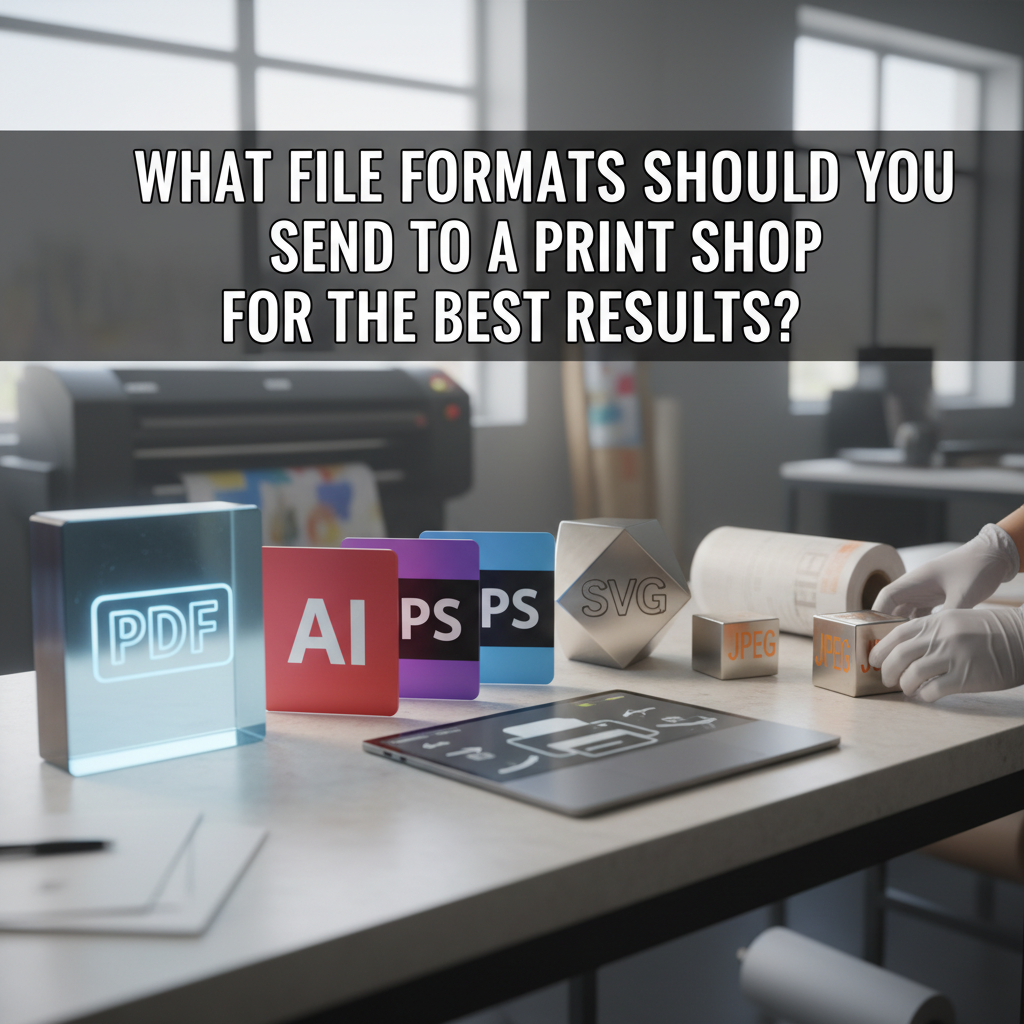
The best file formats to send to a print shop for optimal results are PDF/X-1a and PDF/X-4 for most commercial printing projects, with TIFF files preferred for high-resolution photography and native Adobe files (AI, PSD, INDD) accepted when properly packaged with fonts and images. According to commercial printing standards as of 2025, PDF/X formats ensure color consistency, font embedding, and printer compatibility across all professional printing services.
Why Print File Formats Matter for Professional Printing

Choosing the correct file format directly impacts print quality, color fidelity, and production workflow efficiency. Print shops require specific file formats because commercial printers process files differently than desktop printers. The wrong format can cause printing errors, color shifts, missing fonts, or low-resolution output that compromises your marketing materials. Professional printing services use prepress workflows that validate file specifications before production begins.
Print-ready files must contain all necessary data for accurate reproduction. This includes embedded fonts, high-resolution images at 300 DPI or higher, CMYK color profiles, proper bleed area (typically 0.125 inches), and crop marks. When working with Replica Printing or any commercial printer, understanding file format requirements prevents costly reprints and production delays.
Key Characteristics of Print-Ready File Formats

CMYK Color Mode Requirement
All print-ready documents must use CMYK color space rather than RGB. RGB to CMYK conversion happens differently across devices, causing unpredictable color shifts. Process colors in CMYK mode ensure consistent color matching on offset printing and digital printing equipment. Spot colors using Pantone or PMS colors require specific ICC profile embedding for accurate color separation.
Resolution Requirements and DPI Standards
Image resolution directly determines print output quality. Professional printing requires 300 DPI for standard viewing distances, while large format printing may accept 150 DPI due to increased viewing distance. Effective resolution accounts for image scaling—a 150 DPI image scaled to 200% becomes 75 DPI, causing visible pixelation. Vector graphics maintain quality at any size because they use mathematical paths rather than pixels.
Font Embedding and Outlined Fonts
Missing fonts error in print files occurs when fonts aren’t embedded or outlined. Font embedding includes the complete font data within the file. Font outlining converts text to vector paths, preventing font substitution but eliminating editability. Adobe Illustrator and Adobe InDesign offer both options during export. Rasterize text only when absolutely necessary, as it converts fonts to bitmap images at fixed resolution.
Bleed Area and Trim Specifications
Bleed extends design elements 0.125 inches beyond trim size to prevent white edges from cutting variations. Safe zone or safety margin keeps critical content 0.125 inches inside trim marks to avoid accidental trimming. Registration marks and color bars help press operators align color separation and verify color consistency during the printing process.
Primary File Formats Accepted by Print Shops
PDF/X Standards: The Industry Gold Standard
PDF/X-1a and PDF/X-4 are specialized PDF formats designed for graphic arts and publication printing. PDF/X-1a (established 2001) requires CMYK or spot colors only, embeds all fonts, and prohibits transparency, making it ideal for offset printing. PDF/X-4 (introduced 2008) supports transparency and RGB images with embedded color profiles, accommodating modern design workflows while maintaining print standards.
Press-ready files in PDF/X format undergo automatic preflight check during creation, validating that all printing specifications are met. File compression in PDF format reduces file size without affecting print quality when properly configured. Adobe InDesign, Adobe Illustrator, and Adobe Photoshop export directly to PDF/X standards with preset configurations for commercial printing.
TIFF: High-Quality Raster Images
TIFF files preserve maximum image quality without lossy image compression, making them essential for printing photos and high-resolution artwork. Unlike JPEG files that use compression causing quality degradation, TIFF maintains every pixel at full fidelity. Large format printing for posters and banner printing commonly requires TIFF at 300 DPI minimum. TIFF supports CMYK color mode, spot colors, and multiple layers, though flattened single-layer files are preferred for final output.
EPS: Legacy Vector Format
EPS (Encapsulated PostScript) was the standard vector file format before PDF dominance. While many print shops still accept EPS files, PDF has largely replaced it due to better font handling and smaller file sizes. EPS remains useful for logos and simple vector graphics but lacks the comprehensive prepress features of PDF/X formats. PostScript-based printers process EPS natively, though modern printing technology has moved toward PDF workflows.
Native Adobe File Formats
AI file (Adobe Illustrator), PSD (Adobe Photoshop), and INDD (Adobe InDesign) constitute native file formats that preserve complete editability. Print shops accept these when properly packaged—InDesign’s “Package” and Illustrator’s “Collect for Output” gather all linked images and fonts into a single folder. However, native formats require the print shop to have compatible Adobe software versions and increase the risk of file issues compared to self-contained PDF/X files.
How to Prepare Files for Print Shop Submission
Step 1: Document Setup and Printing Guidelines
Begin with correct document setup using trim size plus bleed area. Set color mode to CMYK from the start to ensure accurate color preview. Establish working color space using appropriate ICC profiles for your printing technology. Configure print margins accounting for binding edge in multi-page documents and gutter space in spreads.
Step 2: Image Preparation and Optimization
Verify all raster images meet resolution requirements—300 DPI for photos, 600 DPI for line art and bitmap conversion. Avoid upsampling or resampling low-resolution images, as interpolation creates artificial pixels reducing sharpness. Use image tracing or vectorization for logos that must scale without quality loss. Convert RGB images to CMYK using proper color profile embedding rather than automatic conversion.
Step 3: Color Management and Spot Color Conversion
Assign ICC profiles matching your commercial printer’s specifications. Check total ink coverage stays below printer limits (typically 280-320% for offset, 200-240% for digital). Apply black generation, undercolor removal, or gray component replacement as specified by printer requirements. Convert spot colors to process colors only when instructed—Pantone colors provide superior color consistency for brand elements.
Step 4: Font and Transparency Handling
Outline fonts in vector artwork or verify complete font embedding in PDFs. Flatten transparency to prevent unexpected rendering in prepress workflow. Use flatten artwork commands in Adobe Illustrator for complex designs with effects. Check that overprint settings are intentional rather than accidental, as unintended overprints cause color shifts in final output.
Step 5: Export Settings and File Delivery
Export to PDF/X-1a for traditional offset printing or PDF/X-4 when transparency preservation is needed. Enable printer marks including crop marks, registration marks, and color bars. Set file compression to maximum quality while maintaining reasonable file sizes. Perform preflight check using built-in validators before file delivery to identify common print file errors.
Common Misconceptions About Print File Formats
Myth: JPEG is Acceptable for All Printing Projects
Reality: JPEG uses lossy compression that degrades image quality with each save. While suitable for web graphics, JPEG for print shop submission causes visible artifacts in high-quality prints. PNG offers lossless compression but doesn’t support CMYK color space. TIFF remains the preferred raster file format for commercial printing when maximum quality is required.
Myth: 72 DPI is Sufficient if the Image Looks Good on Screen
Reality: Screen resolution (72-96 DPI) differs fundamentally from printing requirements. Images appearing sharp on monitors show visible pixelation when printed at 72 DPI. The 300 DPI standard for print quality stems from human visual acuity at typical reading distances. Downsampling high-resolution images is safe, but upsampling introduces blur and quality loss.
Myth: RGB Files Automatically Convert Correctly to CMYK
Reality: RGB color space contains colors impossible to reproduce with CMYK ink limits. Automatic conversion often produces unexpected color shifts, particularly in vibrant blues, oranges, and greens. Manual CMYK conversion with proper color profile embedding and visual verification prevents disappointing print results. Color proofing before production run catches conversion issues early.
Myth: Any PDF Works for Professional Printing
Reality: Standard PDFs lack the strict controls of PDF/X standards. PDFs created for web viewing often contain RGB images, missing fonts, insufficient resolution, and no bleed. PDF/X-1a and PDF/X-4 enforce printing specifications during creation, making why won’t my print shop accept my file a non-issue when properly exported.
File Format Comparisons for Print Production
Vector Graphics vs Raster Images
Vector file formats (AI, EPS, PDF with vector content) use mathematical paths allowing infinite scaling without quality loss. Logos, typography, and illustrations benefit from vector formats. Raster file formats (TIFF, PSD, JPEG) consist of pixel grids with fixed resolution. Photographs and complex imagery require raster formats. SVG, while vector-based, is designed for web use and lacks CMYK support needed for commercial printing standards.
PDF/X-1a vs PDF/X-4
PDF/X-1a requires complete color flattening and CMYK-only content, ensuring maximum compatibility with older printing equipment. PDF/X-4 maintains transparency and supports RGB with embedded ICC profiles, accommodating modern design techniques while still being print-ready. Choose PDF/X-1a for traditional offset printing and when transparency could cause issues. Select PDF/X-4 for digital printing and when preserving transparency effects is critical.
Native Files vs Exported Formats
Native file format (AI, PSD, INDD) provides complete editability but requires software compatibility and carries risk of linked images or fonts being missing. Exported formats like PDF/X create self-contained documents with all resources embedded. While native files allow last-minute corrections by the print shop, exported PDF/X formats reduce production workflow complications and ensure consistent output.
Practical Applications by Print Type
Business Card Printing File Requirements
Business card printing requires PDF/X-1a at 300 DPI with 0.125-inch bleed. Standard trim size is 3.5 × 2 inches. Keep text and logos 0.125 inches from edges in safe zone. Use spot colors for logos requiring exact color matching. Verify color separation shows correct overprint settings for multi-color designs.
Poster Printing and Large Format Specifications
Large format printing for poster printing typically accepts lower resolution—150-200 DPI suffices for posters viewed from distance. PDF/X-4 with CMYK or RGB plus embedded profiles works for most poster applications. Banner printing and vinyl printing require TIFF or PDF formats with appropriate bleed for hem and grommet placement. How to save Illustrator file for printing large formats involves checking that artboard size matches final dimensions plus bleed.
Brochure and Publication Printing
Multi-page documents for brochure printing require proper document export from Adobe InDesign. Package files to include all fonts and images when submitting native INDD files. Alternatively, export to PDF/X-1a with spreads or single pages as specified by printer. Account for binding edge margins and ensure page order follows printing requirements for folding and binding.
Packaging Printing and Label Printing
Packaging printing and label printing demand precise color matching using Pantone color swatch systems. Die-cut packaging requires vector paths for cutting and scoring. Spot color conversion may be necessary when budget requires process color printing instead of PMS colors. T-shirt printing and screen printing file format needs differ—vector artwork with spot color separation works best for screen printing.
Quality Control and Preflight Checking
Preflight check validates files before sending to printer, identifying how to fix low resolution images for print, missing font errors, incorrect color modes, and insufficient bleed. Adobe software includes built-in preflight tools checking against commercial printing standards. Common print file errors to avoid include unconverted RGB images, fonts not outlined or embedded, missing bleed area, and transparency without flattening when required.
Color proofing provides visual verification of how files will print. Soft proofing on calibrated monitors approximates output, while print proofing creates physical samples. Quality control processes catch file issues before production run, preventing waste and ensuring final output matches expectations. File optimization before submission includes compressing unnecessary data while preserving all print-critical information.
Best Practices for Print File Preparation
Following printing best practices ensures smooth production workflow: Always communicate with your print shop about specific printer requirements before beginning design work. Use templates provided by commercial printing services when available. Maintain consistent file naming conventions for document setup variations. Archive source files separately from print-ready files. Request printed proof for critical color-matching projects. Build extra time into schedules for printer compatibility verification and potential file corrections.
How to prepare files for print shop submission becomes systematic with experience: Start in CMYK, build in bleed, use high-resolution images, embed or outline fonts, export to PDF/X, and run preflight before delivery. These fundamentals apply whether you’re producing marketing materials for local distribution or publication printing for national circulation. Understanding what file formats do print shops accept and why these standards exist prevents frustration and ensures high-quality prints that meet your expectations.